

Outlook SMTP Settings: Complete Configuration Guide
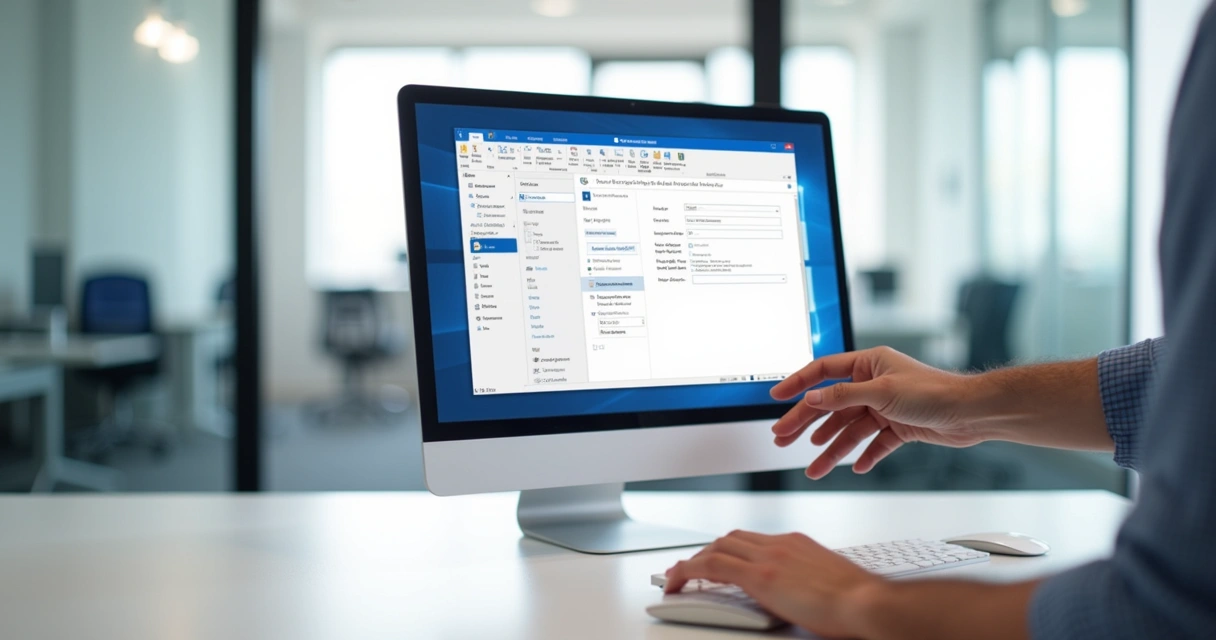
Configuring Outlook SMTP settings correctly is fundamental for ensuring reliable email delivery from your Outlook client. Whether you're setting up a new email account, migrating an existing one, or troubleshooting sending issues, understanding and accurately applying these settings is paramount. This comprehensive guide provides all the necessary information to configure your Outlook SMTP settings for various providers, ensuring your outbound emails are sent without hassle.
Understanding SMTP and Its Role in Outlook
Before diving into the configuration specifics, it's essential to grasp what SMTP is and why it's so critical for your email communication within Outlook.
What is SMTP?
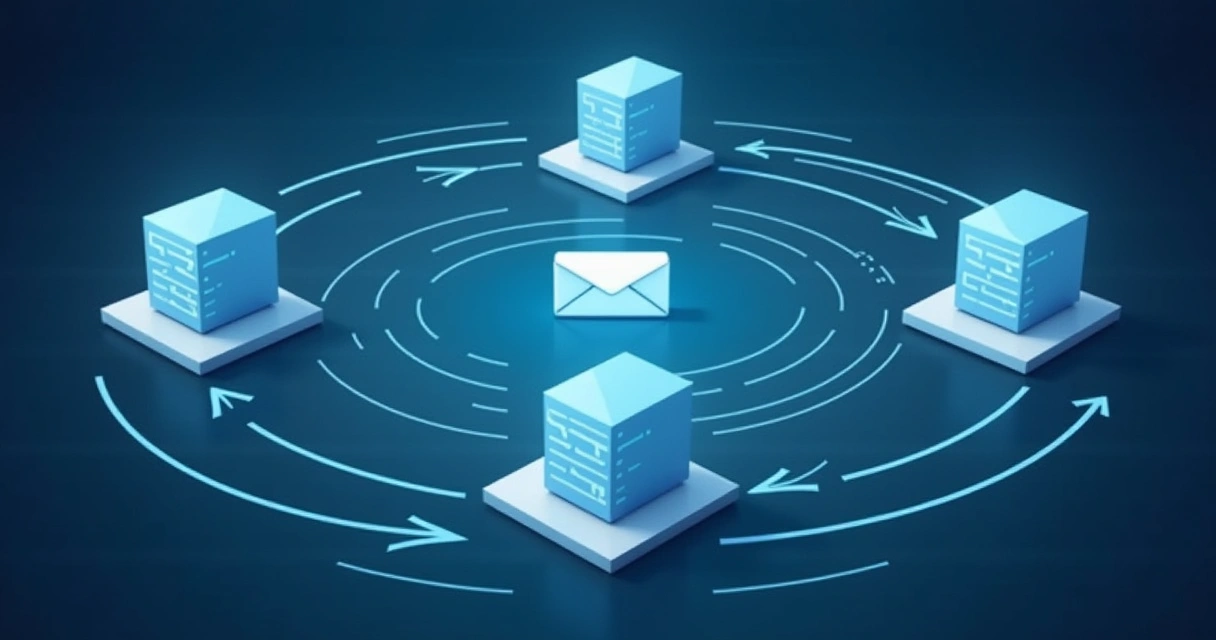
SMTP stands for Simple Mail Transfer Protocol. It is the industry-standard protocol used for sending electronic mail across the internet. Think of it as the postal service for your emails – it dictates how messages are transferred from your email client (like Outlook) to your email server, and then from your server to the recipient's server.
While protocols like POP3 (Post Office Protocol 3) and IMAP (Internet Message Access Protocol) are responsible for receiving emails and managing them on the server, SMTP is solely dedicated to the outbound journey of your messages. Without a properly configured SMTP server, your Outlook client simply cannot send emails.
Why Outlook Needs SMTP
Outlook, as an email client, acts as an interface between you and your email server. When you compose and hit "Send" on an email in Outlook, it doesn't directly transmit the message to the recipient. Instead, it hands the email over to the designated SMTP server, which then takes responsibility for delivering it. This process involves:
- Authentication: The SMTP server verifies your identity (username and password) to ensure you're authorized to send emails through it. This prevents unauthorized users from hijacking servers for spamming.
- Routing: The SMTP server determines the recipient's mail server based on their email address domain and routes the message accordingly.
- Reliable Delivery: Modern SMTP servers incorporate mechanisms to handle temporary failures, retrying deliveries and ensuring the message reaches its destination.
Correct SMTP settings are therefore crucial for your email deliverability, ensuring your messages not only leave your Outbox but also arrive in the recipient's Inbox without encountering errors or being flagged as spam.
Essential Outlook SMTP Settings: The Core Configuration
While the exact values might differ slightly between email providers, the core SMTP settings you'll need to configure in Outlook remain consistent. Here's a breakdown of the key parameters and a table of common settings for popular services.
Standard Settings Breakdown
When you configure SMTP in Outlook, you'll typically encounter these fields:
-
SMTP Server Address (Outgoing mail server): This is the address of your email provider's SMTP server. It's usually a domain name (e.g.,
smtp.outlook.com,smtp.gmail.com).Example: For Outlook.com/Office 365, it's generally
smtp.office365.comorsmtp-mail.outlook.com. -
Port Number: The port is a communication endpoint used by the SMTP protocol. Different ports offer different levels of security and functionality.
- Port 587 (Recommended): This is the default port for secure SMTP submission. It uses STARTTLS encryption, which upgrades an unencrypted connection to an encrypted one. Most modern email clients and servers prefer this port for its security and widespread support.
- Port 465 (SMTPS): This port was historically used for SMTPS (SMTP Secure), which immediately establishes an SSL/TLS encrypted connection. While technically deprecated by some standards, many providers still support it, especially for older configurations.
- Port 25 (Not Recommended): This is the original, unsecured SMTP port. It's often blocked by Internet Service Providers (ISPs) to combat spam. Using Port 25 without encryption is highly insecure and should be avoided for general email sending.
-
Encryption Method: Specifies how the connection between Outlook and the SMTP server is secured.
- STARTTLS: The preferred method for Port 587. It initiates an unencrypted connection and then "upgrades" it to a secure TLS connection. Outlook might list this as "TLS" or "Auto."
- SSL/TLS: Used for Port 465, where the connection starts as encrypted. Outlook might list this explicitly as "SSL/TLS" or "SSL."
- None: Means no encryption. Highly insecure and should only be used if absolutely necessary (e.g., for specific internal server configurations) and understood risks are accepted.
-
Authentication: This setting requires your email username and password to log in to the SMTP server.
- Most email providers require authentication for outgoing mail to prevent unauthorized relaying. The common setting is "My outgoing server (SMTP) requires authentication" and to "Use same settings as my incoming mail server."
- In some cases, especially with Two-Factor Authentication (2FA) enabled, you might need to generate an "App Password" from your email provider's security settings instead of using your main account password.
Common SMTP Settings for Popular Email Providers
Here's a table summarizing the typical SMTP settings for some of the most widely used email services:
| Provider | SMTP Server Address | Port | Encryption | Authentication |
|---|---|---|---|---|
| Outlook.com / Office 365 | smtp.office365.com |
587 | STARTTLS / TLS | Yes (Username & Password) |
| Gmail (Google Workspace) | smtp.gmail.com |
587 | STARTTLS / TLS | Yes (Username & Password / App Password for 2FA) |
| Yahoo Mail | smtp.mail.yahoo.com |
587 | STARTTLS / TLS | Yes (Username & Password / App Password for 2FA) |
| iCloud Mail | smtp.mail.me.com |
587 | TLS | Yes (Apple ID & App Password) |
| Generic (e.g., Hosting Provider) | mail.yourdomain.com (or similar) |
587 (or 465) | STARTTLS / TLS (or SSL) | Yes (Username & Password) |
Note: Always verify the latest settings with your specific email provider's documentation, as these can occasionally change.
Step-by-Step Configuration in Outlook Desktop Application
Configuring SMTP settings in the Outlook desktop application is a straightforward process, whether you're adding a new account or adjusting an existing one.
Adding a New Account (First-Time Setup)
- Open Outlook: Launch your Outlook desktop application.
-
Start Account Setup:
- If it's your first time opening Outlook, it will automatically prompt you to add an account.
- If you have existing accounts, go to File > Add Account.
- Enter Email Address: Type your email address into the field and click Connect.
- Choose Manual Setup: Outlook often tries to auto-configure settings. If it fails or you prefer to manually control the settings, choose Let me set up my account manually and then click Connect.
- Select Account Type: Choose POP or IMAP. For this guide, we'll assume you're using IMAP, which is generally recommended for modern usage.
-
Enter Server Settings:
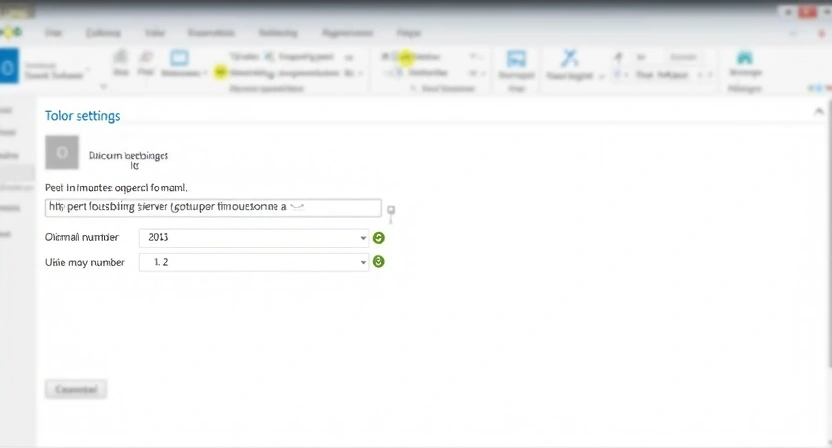
You will see fields for Incoming mail (IMAP) and Outgoing mail (SMTP). Fill in the Outgoing mail (SMTP) details using the information from the table above or your provider's documentation:
- Server: Your SMTP Server Address (e.g.,
smtp.office365.com) - Port: Your SMTP Port (e.g.,
587) - Encryption method: Your SMTP Encryption Method (e.g.,
STARTTLSorTLS) - Require logon using Secure Password Authentication (SPA): This is usually unchecked unless your provider specifically requires it.
- Server: Your SMTP Server Address (e.g.,
- Enter Password: Click Next, then enter your email account password (or app password if 2FA is enabled). Click Connect.
- Complete Setup: If the settings are correct, Outlook will successfully add your account. Click Done.
Modifying Existing Account Settings
If your account is already set up and you need to adjust its SMTP settings, follow these steps:
-
Open Account Settings:
- Go to File in the top-left corner of Outlook.
- Click on Account Settings, then select Account Settings... from the dropdown menu.
- Select Account: In the Account Settings window, select the email account you wish to modify from the list.
- Change Settings: Click the Change... button.
-
Access More Settings:
In the "POP and IMAP Account Settings" or "IMAP Account Settings" window:
- Verify your "Outgoing mail server (SMTP)" address is correct.
- Click on the More Settings... button.
-
Configure Outgoing Server Tab:
In the "Internet E-mail Settings" dialog box, go to the Outgoing Server tab.
- Check "My outgoing server (SMTP) requires authentication." This is almost always required.
-
Select authentication method:
- Most commonly, you'll choose "Use same settings as my incoming mail server." This tells Outlook to use the same username and password for sending as it does for receiving.
- Alternatively, if your provider requires separate credentials for SMTP, select "Log on using" and enter your specific SMTP username and password.
As an expert, I always advise ensuring authentication is enabled for your outgoing server. It's a critical security measure.
"Authentication for your outgoing SMTP server isn't just a recommendation; it's a security imperative. It verifies your identity, preventing unauthorized use and maintaining your email's reputation."
-
Configure Advanced Tab:
Go to the Advanced tab.
-
Outgoing server (SMTP): Enter the correct port number (e.g.,
587). -
Use the following type of encrypted connection: Select the correct encryption method from the dropdown (e.g.,
STARTTLSorTLSfor Port 587,SSLfor Port 465). - Leave the incoming server settings (IMAP/POP3) as they are unless you specifically need to change them.
-
Outgoing server (SMTP): Enter the correct port number (e.g.,
-
Test Account Settings: Click OK to close the "Internet E-mail Settings" dialog, then click Next in the "POP and IMAP Account Settings" or "IMAP Account Settings" window. Outlook will attempt to test the connection.
- If both incoming and outgoing tests complete successfully, click Close, then Finish, and finally Close the Account Settings window.
- If tests fail, review the error message and double-check your settings against your provider's documentation.
Outlook on the Web (Outlook.com / Office 365) Considerations
When you're using Outlook on the Web (via a browser at Outlook.com or through an Office 365 portal), you typically don't need to manually configure SMTP settings. This is because the web interface directly communicates with Microsoft's mail servers, and all the underlying protocol configurations are handled automatically behind the scenes.
However, if you're using an Outlook.com or Office 365 email address in a *third-party* email client (not the desktop Outlook application, but perhaps a mobile app or another desktop client), you would then refer to the "Outlook.com / Office 365" row in the "Common SMTP Settings" table provided earlier in this guide. For example:
- SMTP Server Address:
smtp.office365.com - Port:
587 - Encryption:
STARTTLS / TLS - Authentication: Yes (your email address and password)
App Passwords for 2FA: If you have Two-Factor Authentication (2FA) enabled on your Outlook.com or Office 365 account, you might need to generate an "App Password" through your Microsoft account security settings. This special password is then used in place of your regular password when configuring the account in third-party email clients, including the desktop Outlook application in some scenarios.
Common SMTP Configuration Issues and Troubleshooting
Even with a guide, you might encounter issues. Here are common problems and their solutions:
Incorrect Server Address or Port
- Problem: "The server rejected your login," "Timed out," or "Could not connect to SMTP server."
- Solution: Double-check the SMTP server address, port number, and encryption method against your email provider's official documentation. A single typo can prevent connection. Refer back to our common settings table.
Authentication Failure
- Problem: "535 Authentication failed," "530 Authentication required," or "The server rejected your login."
- Solution:
- Incorrect Credentials: Verify your username (often your full email address) and password. Typo check is crucial.
- App Passwords: If you have 2FA enabled, ensure you're using an app-specific password generated from your email provider's security settings, not your main account password.
- Account Lockout: Some providers temporarily lock accounts after too many failed login attempts. Check your provider's status page or log in via webmail to confirm your account is active.
- "My outgoing server requires authentication" is unchecked: Make sure this box is checked in Outlook's Outgoing Server settings.
Firewall or Antivirus Blocking
- Problem: "Timed out," "Could not connect," or general connection errors, especially after a software update.
- Solution:
- Temporarily Disable: Briefly disable your firewall or antivirus software to see if the email sends. If it does, you'll need to add an exception for Outlook or the specific SMTP port (e.g., 587) in your security software settings.
- Network Ports: Ensure your network firewall isn't blocking outbound connections on standard SMTP ports.
ISP Blocking Port 25
- Problem: If you're using Port 25 and emails are not sending.
- Solution: Many Internet Service Providers (ISPs) block Port 25 by default to prevent spam. Switch to Port 587 with STARTTLS encryption. This is the recommended and most secure option for outbound email.
Connection Timeout Errors
- Problem: Emails stuck in the Outbox, eventually returning a "timed out" error.
- Solution:
- Network Connectivity: Check your internet connection.
- Server Load: The SMTP server might be temporarily overloaded. Try again after some time.
- Configuration: Review all your SMTP settings, especially encryption and port, as incorrect settings can lead to connection attempts that never complete.
"Relaying Denied" Error
- Problem: The error message "550 Relaying denied" or similar appears.
- Solution: This usually means the SMTP server you are trying to use does not recognize you as an authorized sender or your email address. It often points back to an authentication issue.
- Ensure "My outgoing server (SMTP) requires authentication" is checked.
- Confirm you are using the correct username and password (or app password).
- Make sure you are sending from the same email address that is configured for the account in Outlook.
Remember this golden rule for SMTP troubleshooting:
"If an SMTP server denies relaying, it's essentially saying, 'I don't know you, or you haven't proven who you are.' Authentication is almost always the key."
Advanced Considerations for Professional Email Marketing with Postigo
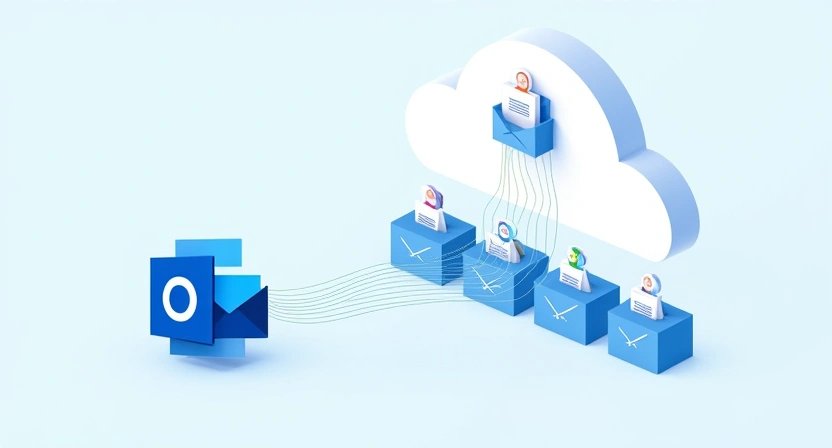
While configuring Outlook for personal or small-scale business use is essential, professional email marketing and cold outreach platforms like Postigo operate with a different set of considerations to ensure high deliverability and scale.
Dedicated SMTP Servers vs. Shared
For high-volume sending, particularly in cold outreach, relying on a shared SMTP server (like those provided by consumer email services) can be limiting. Dedicated SMTP servers offer:
- Better IP Reputation: Your sending IP address is yours alone, meaning your deliverability isn't affected by other users' sending practices.
- Higher Sending Limits: Consumer services often have daily sending limits that are too low for effective campaigns. Dedicated SMTP services are built for scale.
- Advanced Analytics: Greater insight into bounces, opens, and clicks, which is crucial for optimizing campaigns.
Platforms like Postigo leverage robust SMTP infrastructure designed for professional sending, often including options for dedicated IPs.
Email Sending Limits
Even with correct Outlook SMTP settings, popular providers impose daily sending limits:
- Outlook.com: Generally around 300 emails per day for established accounts.
- Gmail: Up to 500 emails per day when sending from an email client or mobile device. Google Workspace accounts have higher limits.
These limits are far too low for effective cold outreach or email marketing campaigns, emphasizing the need for specialized platforms when scale is a factor. For more details on avoiding these pitfalls, refer to our guide on cold email deliverability.
SPF, DKIM, DMARC for Enhanced Deliverability
While SMTP handles the sending, SPF, DKIM, and DMARC are DNS records that work in conjunction with your SMTP server to verify your sender identity and protect your domain from spoofing. They are critical for ensuring your emails land in the inbox and not the spam folder:
- SPF (Sender Policy Framework): Specifies which mail servers are authorized to send emails on behalf of your domain.
- DKIM (DomainKeys Identified Mail): Adds a digital signature to your outgoing emails, allowing receiving servers to verify that the email truly originated from your domain and hasn't been tampered with.
- DMARC (Domain-based Message Authentication, Reporting & Conformance): Builds upon SPF and DKIM, telling receiving servers how to handle emails that fail authentication (e.g., quarantine, reject) and provides reporting on email authentication results.
Properly configuring these records for your sending domain is non-negotiable for professional email operations. Learn more about setting these up in our comprehensive SPF, DKIM, and DMARC guide.
The Postigo Advantage for High-Volume Sending
For businesses engaged in serious cold outreach or email marketing, managing individual Outlook SMTP settings across numerous accounts or ensuring deliverability at scale quickly becomes unwieldy. Postigo simplifies this process by:
- Streamlined Integration: Easily connect multiple email accounts (including Outlook.com and Office 365 accounts) without manual SMTP configuration hassles.
- Automated Deliverability Optimization: Postigo's infrastructure is built to adhere to best practices for deliverability, helping your emails bypass spam filters.
- Scalable Infrastructure: Designed to handle high volumes of email, far exceeding the limits of personal email clients.
- Comprehensive Analytics: Track open rates, click-through rates, bounces, and more, providing actionable insights to refine your outreach strategies.
By abstracting away the complexities of SMTP management and focusing on advanced deliverability techniques, Postigo empowers you to concentrate on crafting compelling messages and building relationships, rather than troubleshooting technical configurations.
Conclusion
Mastering Outlook SMTP settings is a foundational skill for anyone relying on Outlook for email communication. From understanding the core components like server address, port, and encryption, to troubleshooting common issues, a well-configured SMTP setup ensures your emails reach their intended recipients reliably.
For individuals and small-scale users, meticulous adherence to your provider's recommended settings will serve you well. However, when your email needs evolve into professional marketing and high-volume cold outreach, dedicated platforms like Postigo offer a robust, scalable, and optimized solution that handles the intricate details of deliverability, allowing you to execute impactful campaigns with confidence. Explore Postigo today to elevate your email outreach capabilities beyond the confines of individual client configurations.
Related Posts
Ready to scale your outreach?
Start sending personalized cold emails with AI-powered automation. Free trial, no credit card required.
Start Free Trial arrow_forward